
-p-2000.png)


Webflow to Shopify: How to Run Content on Webflow and Commerce on Shopify

TL;DR:
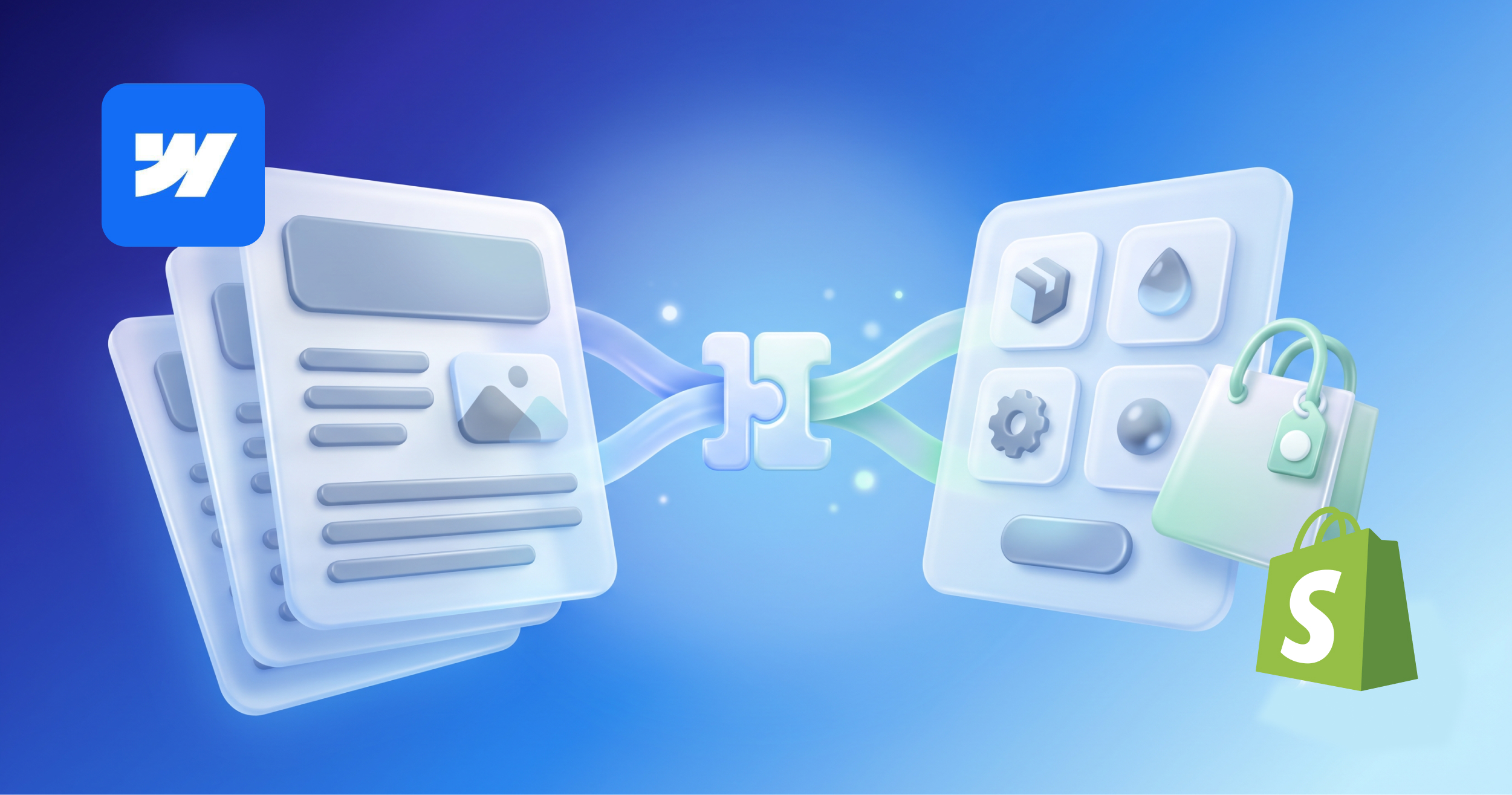
If you love Webflow's design and content tools but need serious e-commerce, you do not have to pick one. The common, and often best, setup is to run your marketing site and content on Webflow and your store and checkout on Shopify. There are four ways to connect them, from simplest to most advanced: the Shopify Buy Button (an embed), a subdomain split (content on your main domain, store on a shop subdomain), a sync app that pulls Shopify products into the Webflow CMS, and a full headless build using Shopify's Storefront API. Most brands are well served by one of the first two.
People searching "Webflow to Shopify" usually mean one of two things. Some want to move their whole site off Webflow onto Shopify. Others want to keep Webflow's design and content power but add real e-commerce.
For most brands, the second option is the better one, and you often do not need to migrate at all. You can run content and brand on Webflow and commerce on Shopify, and get the strengths of both.
Here is why that split works, and the four ways to connect the two.
Why split content and commerce
Webflow and Shopify are each excellent at different jobs. Trying to force one to do the other's job is where teams get frustrated.
Webflow is strongest at:
- Custom, brand-level design and animation
- A flexible CMS for blogs, landing pages, and content
- Marketing pages you can update without a developer
- Speed and SEO control
Shopify is strongest at:
- Checkout, payments, and tax handling
- Inventory, orders, and fulfillment
- Discounts, subscriptions, and shipping logic
- A huge ecosystem of commerce apps
So the natural division is simple. Let Webflow own the story and the brand. Let Shopify own the transaction and the logistics. The only real question is how to connect them.
Method 1: The Shopify Buy Button (simplest, best for most)
The Buy Button is an embeddable widget from Shopify that you drop onto a Webflow page. It shows a product and sends the shopper into Shopify's secure checkout when they buy.
- Best for: brands with a content-led site and a focused set of products.
- Why it works: it is quick to set up, reliable, and keeps all the payment and cart complexity inside Shopify where it belongs.
- The tradeoff: styling control is limited compared to a fully custom build.
For a lot of B2B and content-driven brands, this is all they need. Your Webflow site does the storytelling, and a Buy Button turns intent into a sale without rebuilding anything.
Method 2: The subdomain split (clean separation)
Here you run your main site on Webflow at your primary domain, and your store on Shopify at a subdomain, for example your brand on the main domain and the shop on a "shop" subdomain.
- Best for: brands with a real catalog that want full Shopify power for the store, and full Webflow power for everything else.
- Why it works: each platform does what it is best at, with no compromise on either side. Shoppers move between them through simple links.
- The tradeoff: it is two properties to maintain, and you want the design and navigation to feel seamless so the handoff is invisible to the customer.
This is a very common setup for growing brands, because it scales cleanly as the catalog grows.
Method 3: Sync apps (products inside your Webflow CMS)
Third-party apps such as Shopyflow pull your Shopify product data into the Webflow CMS. You design product pages in Webflow, the data stays in sync with Shopify, and checkout still runs through Shopify's payment system.
- Best for: brands that want Webflow-designed product pages without building a full headless setup.
- Why it works: you get design freedom on product pages while Shopify remains the source of truth for inventory and checkout.
- The tradeoff: you are relying on a third-party app, so factor in its cost and its limits.
Method 4: Headless with the Storefront API (most control, most complexity)
The most flexible option is a headless build. Webflow handles the entire front end and content, while Shopify runs commerce in the background through its Storefront API.
- Best for: larger brands that need complete design control across the whole shopping experience and have development support.
- Why it works: nothing about the storefront design is constrained by templates.
- The tradeoff: it is the most complex to build and maintain. Because Webflow restricts client-side calls to its API, a headless setup typically needs server-side orchestration to connect the two safely. This is a real project, not a plugin.
Which method is right for you
A quick way to decide:
- A handful of products on a content-led site? Start with the Buy Button.
- A real catalog and you want both platforms at full strength? Use the subdomain split.
- You want Webflow-designed product pages without going fully custom? Try a sync app.
- You are a larger brand needing total design control and you have dev support? Consider headless.
Most brands overreach here and start planning a headless build when a Buy Button or a subdomain split would serve them better, faster, and cheaper. Start with the simplest method that meets your needs, and only add complexity when the business actually requires it.
Not sure which setup fits your brand? The right Webflow and Shopify architecture depends on your catalog, your team, and where you are headed. We are a Webflow Premium Partner based in Seattle, and we help brands connect content and commerce without overbuilding.
Let's Talk
Talk to a Webflow ExpertLet's Talk
Talk to a Webflow ExpertFAQ
Can Webflow and Shopify work together?
Yes. You can run your content and marketing site on Webflow and your store on Shopify, connected through the Shopify Buy Button, a subdomain split, a sync app, or a headless build using Shopify's Storefront API.
Do I need to migrate from Webflow to Shopify?
Usually not. If your goal is to keep Webflow's design and content strengths but add real e-commerce, it is often better to connect the two rather than move everything to Shopify.
What is the easiest way to add Shopify to a Webflow site?
The Shopify Buy Button. It is an embeddable widget you add to a Webflow page, and it sends shoppers into Shopify's secure checkout. It is the simplest and most reliable method for most sites.
Is a headless Webflow and Shopify setup worth it?
Only for brands that need full design control across the entire storefront and have development resources. Because Webflow restricts client-side API calls, a headless build needs server-side orchestration, so it is a larger project than the other methods.
Which platform handles checkout and payments?
Shopify. In every one of these setups, Shopify owns the cart, checkout, payments, and inventory. Webflow handles the content, brand, and design.
Marketing Team
Publisher
People searching "Webflow to Shopify" usually mean one of two things. Some want to move their whole site off Webflow onto Shopify. Others want to keep Webflow's design and content power but add real e-commerce.
For most brands, the second option is the better one, and you often do not need to migrate at all. You can run content and brand on Webflow and commerce on Shopify, and get the strengths of both.
Here is why that split works, and the four ways to connect the two.
Why split content and commerce
Webflow and Shopify are each excellent at different jobs. Trying to force one to do the other's job is where teams get frustrated.
Webflow is strongest at:
- Custom, brand-level design and animation
- A flexible CMS for blogs, landing pages, and content
- Marketing pages you can update without a developer
- Speed and SEO control
Shopify is strongest at:
- Checkout, payments, and tax handling
- Inventory, orders, and fulfillment
- Discounts, subscriptions, and shipping logic
- A huge ecosystem of commerce apps
So the natural division is simple. Let Webflow own the story and the brand. Let Shopify own the transaction and the logistics. The only real question is how to connect them.
Method 1: The Shopify Buy Button (simplest, best for most)
The Buy Button is an embeddable widget from Shopify that you drop onto a Webflow page. It shows a product and sends the shopper into Shopify's secure checkout when they buy.
- Best for: brands with a content-led site and a focused set of products.
- Why it works: it is quick to set up, reliable, and keeps all the payment and cart complexity inside Shopify where it belongs.
- The tradeoff: styling control is limited compared to a fully custom build.
For a lot of B2B and content-driven brands, this is all they need. Your Webflow site does the storytelling, and a Buy Button turns intent into a sale without rebuilding anything.
Method 2: The subdomain split (clean separation)
Here you run your main site on Webflow at your primary domain, and your store on Shopify at a subdomain, for example your brand on the main domain and the shop on a "shop" subdomain.
- Best for: brands with a real catalog that want full Shopify power for the store, and full Webflow power for everything else.
- Why it works: each platform does what it is best at, with no compromise on either side. Shoppers move between them through simple links.
- The tradeoff: it is two properties to maintain, and you want the design and navigation to feel seamless so the handoff is invisible to the customer.
This is a very common setup for growing brands, because it scales cleanly as the catalog grows.
Method 3: Sync apps (products inside your Webflow CMS)
Third-party apps such as Shopyflow pull your Shopify product data into the Webflow CMS. You design product pages in Webflow, the data stays in sync with Shopify, and checkout still runs through Shopify's payment system.
- Best for: brands that want Webflow-designed product pages without building a full headless setup.
- Why it works: you get design freedom on product pages while Shopify remains the source of truth for inventory and checkout.
- The tradeoff: you are relying on a third-party app, so factor in its cost and its limits.
Method 4: Headless with the Storefront API (most control, most complexity)
The most flexible option is a headless build. Webflow handles the entire front end and content, while Shopify runs commerce in the background through its Storefront API.
- Best for: larger brands that need complete design control across the whole shopping experience and have development support.
- Why it works: nothing about the storefront design is constrained by templates.
- The tradeoff: it is the most complex to build and maintain. Because Webflow restricts client-side calls to its API, a headless setup typically needs server-side orchestration to connect the two safely. This is a real project, not a plugin.
Which method is right for you
A quick way to decide:
- A handful of products on a content-led site? Start with the Buy Button.
- A real catalog and you want both platforms at full strength? Use the subdomain split.
- You want Webflow-designed product pages without going fully custom? Try a sync app.
- You are a larger brand needing total design control and you have dev support? Consider headless.
Most brands overreach here and start planning a headless build when a Buy Button or a subdomain split would serve them better, faster, and cheaper. Start with the simplest method that meets your needs, and only add complexity when the business actually requires it.
Not sure which setup fits your brand? The right Webflow and Shopify architecture depends on your catalog, your team, and where you are headed. We are a Webflow Premium Partner based in Seattle, and we help brands connect content and commerce without overbuilding.
Let's Talk
Button TextFAQ
Can Webflow and Shopify work together?
Yes. You can run your content and marketing site on Webflow and your store on Shopify, connected through the Shopify Buy Button, a subdomain split, a sync app, or a headless build using Shopify's Storefront API.
Do I need to migrate from Webflow to Shopify?
Usually not. If your goal is to keep Webflow's design and content strengths but add real e-commerce, it is often better to connect the two rather than move everything to Shopify.
What is the easiest way to add Shopify to a Webflow site?
The Shopify Buy Button. It is an embeddable widget you add to a Webflow page, and it sends shoppers into Shopify's secure checkout. It is the simplest and most reliable method for most sites.
Is a headless Webflow and Shopify setup worth it?
Only for brands that need full design control across the entire storefront and have development resources. Because Webflow restricts client-side API calls, a headless build needs server-side orchestration, so it is a larger project than the other methods.
Which platform handles checkout and payments?
Shopify. In every one of these setups, Shopify owns the cart, checkout, payments, and inventory. Webflow handles the content, brand, and design.
Marketing Team
Publisher


Hi, I'm Mike!
If you are enjoying the article, feel free to subscribe to our monthly newsletter.
If you have any project requirements, please contact us.