White abstract curved line on a transparent background.Curved white arc with a subtle shadow on a transparent background.Curved white wave shape on a transparent background.

The Webflow Integrations That Matter for B2B (HubSpot, Salesforce, Segment, Intercom)

Webflow integration

TL;DR:

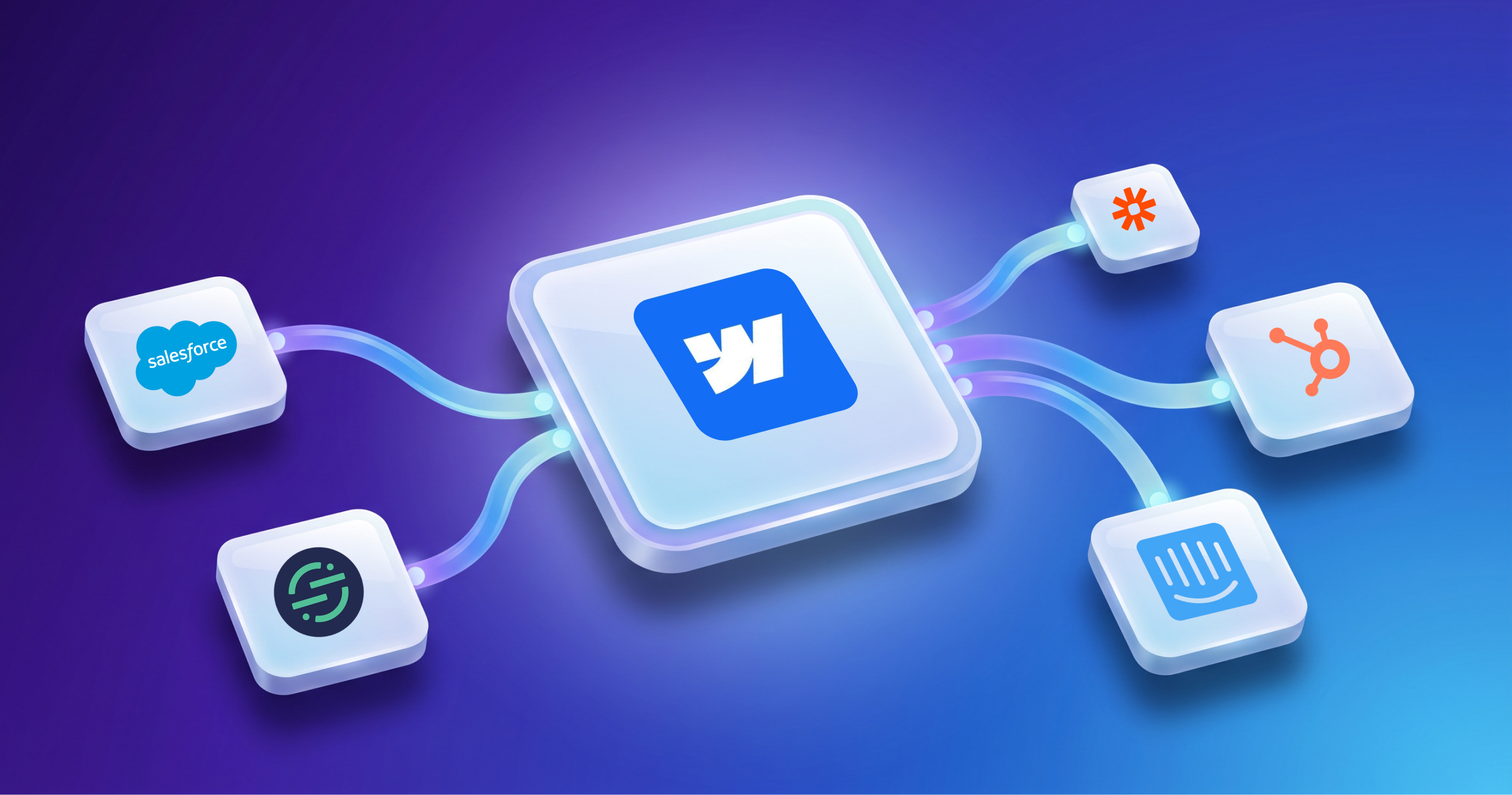
For a B2B company, your website is the top of the funnel, so it has to connect cleanly to the rest of your stack. The four integrations that matter most are HubSpot (marketing and CRM), Salesforce (enterprise CRM), Segment (customer data), and Intercom (support and chat). HubSpot connects through a native Webflow app. The others connect through embeds, tracking scripts, or an automation tool like Zapier or Make. The goal is simple: capture the lead, route it to the right system, track behavior, and support the customer, without anything falling through the cracks.

One of the most common questions we hear from B2B teams considering Webflow is a fair one: "Can it actually work with our stack?"

The short answer is yes. Webflow is not a walled garden. For a B2B business, though, the more useful question is not "can it connect to everything," but "which integrations actually matter, and how do they connect?"

Your website is where demand shows up. A visitor fills in a form, books a demo, or starts a chat. What happens in the next few seconds, whether that lead lands in your CRM cleanly, gets attributed correctly, and reaches the right person, is what separates a site that generates pipeline from a nice-looking page that leaks it.

Here are the four integrations that matter most for B2B, and the honest version of how each one works.

First, the four ways Webflow connects to anything

Before the specific tools, it helps to know the connection methods, roughly in order of how clean they are:

  • Native apps: an official integration installed from Webflow's Apps panel. The cleanest option when it exists.
  • Embeds and tracking scripts: a snippet of code from the other tool added to your site. This is how most analytics and chat tools connect.
  • Automation tools: services like Zapier or Make that catch a Webflow form submission and send it wherever you need.
  • Native Webflow forms: the built-in form, mapped or piped into another system.

Most B2B setups use a mix. One note up front: adding custom code or tracking scripts requires a paid Webflow plan, so factor that in.

HubSpot: the most common B2B connection

For a lot of B2B teams, HubSpot is the hub, and this is where Webflow's integration is strongest. Webflow has a native HubSpot app (approved by Webflow), and it offers three ways to connect forms:

  • Form mapping: connect an existing, already-styled Webflow form to HubSpot so submissions route straight to your CRM. Fastest to set up, works on any HubSpot plan, but it only supports plain text fields.
  • Embedded HubSpot forms: drop a HubSpot form onto the page, so your marketing team can edit fields in HubSpot and see changes live. Great for teams that tweak forms often, though matching your exact design can be harder.
  • Developer embed: generate a form template you style directly in Webflow for pixel-perfect control. This one requires HubSpot Marketing Professional or Enterprise.

Beyond forms, the same app lets you add HubSpot's tracking code (for attribution), chatbots, and meeting schedulers. The practical tip: field names in Webflow must match your HubSpot property names exactly, or submissions quietly fail to map.

Salesforce: the enterprise CRM route

Salesforce does not have the same one-click native Webflow app that HubSpot does, so the connection is usually built one of two ways:

  • Through an automation tool (Zapier or Make): a Webflow form submission triggers a new lead or contact in Salesforce, with fields mapped across.
  • Through Salesforce Web-to-Lead: Salesforce generates a form endpoint that your Webflow form can post to directly.

For enterprise teams, the automation route is usually the more flexible choice, because it lets you add logic (routing by region, deduping, enriching data) between the form and the CRM. The tradeoff is one more system to maintain, so it is worth setting up carefully and testing every field.

Segment: one place to send your customer data

Segment is a customer data platform. Instead of adding a separate tracking script for every analytics and marketing tool, you add Segment once, and it fans that data out to everything else.

You connect it to Webflow by adding Segment's tracking snippet as custom code. From there, Segment collects page views and events and routes them to your analytics, your CRM, your ad platforms, and more.

For B2B teams running a real martech stack, this is the tidiest way to keep tracking consistent. It also means that when you swap or add a tool later, you often just flip it on in Segment rather than re-instrumenting your whole site.

Intercom: support and chat on the site

Intercom (or a similar tool like Drift) puts live chat, a help center, and proactive messaging directly on your site. For B2B, that chat widget is often where a high-intent visitor turns into a conversation.

Intercom connects to Webflow by adding its JavaScript snippet as custom code. Once it is live, the messenger appears on your pages and can identify logged-in users, trigger messages based on behavior, and route conversations to your team.

The thing to get right here is not the install, it is the strategy: proactive chat on a pricing page behaves very differently from a passive bubble on a blog post.

The B2B principle: integrate by the job, not the logo

It is easy to look at an integrations directory and want to connect everything. The better approach is to map integrations to the four jobs your site actually needs to do:

  • Capture the lead (Webflow forms, HubSpot forms)
  • Route it to the right system (HubSpot, Salesforce, via native app or automation)
  • Track behavior and attribution (Segment, HubSpot tracking)
  • Support the visitor in the moment (Intercom, Drift)

Get those four working cleanly and you have covered what most B2B sites actually need. Everything else is an add-on, not a requirement.

Planning a Webflow build that has to fit your stack? The integrations are rarely the hard part. Getting them mapped, tested, and reliable is. We are a Webflow Premium Partner based in Seattle, and we build B2B sites that connect cleanly to the CRM, analytics, and support tools your team already uses.

Looking for a Webflow-certified developer to build a website?

Let's Talk

Talk to a Webflow Expert
Headshots of three individuals: a blonde woman in a red patterned blouse, a young woman with straight brown hair, and a man with short curly dark hair and earrings.

Do you want to keep reading?

Enter your details to read more and download PDF

By entering your details, you’ll get instant access to the PDF. We respect your privacy and won’t share your information.

Oops! Something went wrong while submitting the form.

FAQ

Does Webflow integrate with HubSpot natively?

Yes. Webflow has a native HubSpot app you install from the Apps panel. It supports three form-connection methods (form mapping, embedded forms, and developer embed) plus tracking code, chatbots, and meeting schedulers.

Can Webflow connect to Salesforce?

Yes, though not through a one-click native app like HubSpot. Most teams connect Webflow to Salesforce using an automation tool such as Zapier or Make, or through Salesforce Web-to-Lead, so form submissions create leads or contacts automatically.

Do I need a paid Webflow plan for integrations?

For anything that requires custom code or tracking scripts (Segment, Intercom, HubSpot tracking), yes. Adding custom code is available on Webflow's paid Workspace and Site plans.

What is the best way to keep tracking consistent across tools?

A customer data platform like Segment. You add it once, and it distributes event and page data to your other tools, so you are not maintaining a separate script for each one.

Which integrations does a B2B site actually need?

At minimum, a way to capture leads, route them to your CRM, track behavior for attribution, and offer support or chat. For most teams that maps to a CRM (HubSpot or Salesforce), a data or analytics layer (Segment), and a support tool (Intercom).

‍Marketing Team

Publisher

One of the most common questions we hear from B2B teams considering Webflow is a fair one: "Can it actually work with our stack?"

The short answer is yes. Webflow is not a walled garden. For a B2B business, though, the more useful question is not "can it connect to everything," but "which integrations actually matter, and how do they connect?"

Your website is where demand shows up. A visitor fills in a form, books a demo, or starts a chat. What happens in the next few seconds, whether that lead lands in your CRM cleanly, gets attributed correctly, and reaches the right person, is what separates a site that generates pipeline from a nice-looking page that leaks it.

Here are the four integrations that matter most for B2B, and the honest version of how each one works.

First, the four ways Webflow connects to anything

Before the specific tools, it helps to know the connection methods, roughly in order of how clean they are:

  • Native apps: an official integration installed from Webflow's Apps panel. The cleanest option when it exists.
  • Embeds and tracking scripts: a snippet of code from the other tool added to your site. This is how most analytics and chat tools connect.
  • Automation tools: services like Zapier or Make that catch a Webflow form submission and send it wherever you need.
  • Native Webflow forms: the built-in form, mapped or piped into another system.

Most B2B setups use a mix. One note up front: adding custom code or tracking scripts requires a paid Webflow plan, so factor that in.

HubSpot: the most common B2B connection

For a lot of B2B teams, HubSpot is the hub, and this is where Webflow's integration is strongest. Webflow has a native HubSpot app (approved by Webflow), and it offers three ways to connect forms:

  • Form mapping: connect an existing, already-styled Webflow form to HubSpot so submissions route straight to your CRM. Fastest to set up, works on any HubSpot plan, but it only supports plain text fields.
  • Embedded HubSpot forms: drop a HubSpot form onto the page, so your marketing team can edit fields in HubSpot and see changes live. Great for teams that tweak forms often, though matching your exact design can be harder.
  • Developer embed: generate a form template you style directly in Webflow for pixel-perfect control. This one requires HubSpot Marketing Professional or Enterprise.

Beyond forms, the same app lets you add HubSpot's tracking code (for attribution), chatbots, and meeting schedulers. The practical tip: field names in Webflow must match your HubSpot property names exactly, or submissions quietly fail to map.

Salesforce: the enterprise CRM route

Salesforce does not have the same one-click native Webflow app that HubSpot does, so the connection is usually built one of two ways:

  • Through an automation tool (Zapier or Make): a Webflow form submission triggers a new lead or contact in Salesforce, with fields mapped across.
  • Through Salesforce Web-to-Lead: Salesforce generates a form endpoint that your Webflow form can post to directly.

For enterprise teams, the automation route is usually the more flexible choice, because it lets you add logic (routing by region, deduping, enriching data) between the form and the CRM. The tradeoff is one more system to maintain, so it is worth setting up carefully and testing every field.

Segment: one place to send your customer data

Segment is a customer data platform. Instead of adding a separate tracking script for every analytics and marketing tool, you add Segment once, and it fans that data out to everything else.

You connect it to Webflow by adding Segment's tracking snippet as custom code. From there, Segment collects page views and events and routes them to your analytics, your CRM, your ad platforms, and more.

For B2B teams running a real martech stack, this is the tidiest way to keep tracking consistent. It also means that when you swap or add a tool later, you often just flip it on in Segment rather than re-instrumenting your whole site.

Intercom: support and chat on the site

Intercom (or a similar tool like Drift) puts live chat, a help center, and proactive messaging directly on your site. For B2B, that chat widget is often where a high-intent visitor turns into a conversation.

Intercom connects to Webflow by adding its JavaScript snippet as custom code. Once it is live, the messenger appears on your pages and can identify logged-in users, trigger messages based on behavior, and route conversations to your team.

The thing to get right here is not the install, it is the strategy: proactive chat on a pricing page behaves very differently from a passive bubble on a blog post.

The B2B principle: integrate by the job, not the logo

It is easy to look at an integrations directory and want to connect everything. The better approach is to map integrations to the four jobs your site actually needs to do:

  • Capture the lead (Webflow forms, HubSpot forms)
  • Route it to the right system (HubSpot, Salesforce, via native app or automation)
  • Track behavior and attribution (Segment, HubSpot tracking)
  • Support the visitor in the moment (Intercom, Drift)

Get those four working cleanly and you have covered what most B2B sites actually need. Everything else is an add-on, not a requirement.

Planning a Webflow build that has to fit your stack? The integrations are rarely the hard part. Getting them mapped, tested, and reliable is. We are a Webflow Premium Partner based in Seattle, and we build B2B sites that connect cleanly to the CRM, analytics, and support tools your team already uses.

Looking for a Webflow-certified developer to build a website?

Let's Talk

Talk to a Webflow Expert

Let's Talk

Button Text
Headshots of three individuals: a blonde woman in a red patterned blouse, a young woman with straight brown hair, and a man with short curly dark hair and earrings.

Do you want to keep reading?

Enter your details to read more and download PDF

Enter your details to read more

By entering your details, you’ll get instant access to the PDF. We respect your privacy and won’t share your information.

Oops! Something went wrong while submitting the form.

FAQ

Does Webflow integrate with HubSpot natively?

Yes. Webflow has a native HubSpot app you install from the Apps panel. It supports three form-connection methods (form mapping, embedded forms, and developer embed) plus tracking code, chatbots, and meeting schedulers.

Can Webflow connect to Salesforce?

Yes, though not through a one-click native app like HubSpot. Most teams connect Webflow to Salesforce using an automation tool such as Zapier or Make, or through Salesforce Web-to-Lead, so form submissions create leads or contacts automatically.

Do I need a paid Webflow plan for integrations?

For anything that requires custom code or tracking scripts (Segment, Intercom, HubSpot tracking), yes. Adding custom code is available on Webflow's paid Workspace and Site plans.

What is the best way to keep tracking consistent across tools?

A customer data platform like Segment. You add it once, and it distributes event and page data to your other tools, so you are not maintaining a separate script for each one.

Which integrations does a B2B site actually need?

At minimum, a way to capture leads, route them to your CRM, track behavior for attribution, and offer support or chat. For most teams that maps to a CRM (HubSpot or Salesforce), a data or analytics layer (Segment), and a support tool (Intercom).

‍Marketing Team

Publisher

Curved white arc with a subtle shadow on a transparent background.Curved white wave shape on a transparent background.